images5 min
Image Compression: Formats and Tradeoffs
Compare PNG, JPEG, WebP, and AVIF tradeoffs, understand browser-side re-encoding, and choose settings using repeatable visual checks.
Read more→Free image tools: compress, convert, resize, crop, rotate, apply filters and add watermarks online. 100% browser-based, files never leave your device.
Processing: local in your browser
Compress, convert, resize, crop, rotate, apply filters, and add watermarks to images directly in your browser. Supports JPEG, PNG, and WebP without uploading files to any server.
Reduce image file sizes while maintaining quality, convert between formats, adjust dimensions, crop with social media presets, rotate and flip, apply professional filters, and protect your photos with customizable watermarks.
Quality-controlled compression, JPEG/PNG/WebP conversion with adjustable quality, aspect-ratio-aware resizing, cropping with Instagram/YouTube/Facebook presets, rotate and flip, brightness/contrast/saturation/blur/grayscale/sepia/invert filters, and text watermarking with customizable position, opacity, and tiling.
Choosing the right image format can make a big difference in quality and file size. JPEG is ideal for photographs and images with many colors and gradients, as it uses lossy compression that dramatically reduces size at the cost of slight quality reduction. PNG is best for graphics, logos, screenshots, and images requiring transparency, since it uses lossless compression and maintains sharp edges. WebP is a modern format developed by Google that offers the best of both worlds: superior compression in both lossy and lossless modes, with files up to 30% smaller than JPEG at the same quality, plus transparency support like PNG. Our converter lets you switch between all three formats with full control over output quality.
Unoptimized images are one of the leading causes of slow websites. To improve loading speed, compress your images before uploading: a JPEG at 80% quality is usually visually indistinguishable from the original but weighs significantly less. Use the correct dimensions rather than uploading massive images and resizing them with CSS. Serve WebP format when the browser supports it, with JPEG or PNG as a fallback. For icons and simple graphics, consider using SVG instead of raster formats. Our compression tool helps you find the perfect balance between visual quality and file size.
Each social network has its own recommended dimensions. For Instagram, the standard square post is 1080 x 1080 pixels, stories and reels require 1080 x 1920 (9:16), and the profile picture is 320 x 320. On YouTube, the ideal thumbnail is 1280 x 720 pixels (16:9), and the banner image measures 2560 x 1440. For Facebook, the cover photo is 820 x 312 on desktop, shared posts work best at 1200 x 630, and the profile picture is 170 x 170. Our cropping tool includes presets for all these platforms, so you can prepare your images for social media with a single click.
A watermark overlays text on an image to mark its origin or discourage unauthorized use. In our tool you can adjust the text, position, and opacity, and tile it to cover the whole photo. Low opacity is subtle but easy to crop out; tiling is harder to remove but also more intrusive. Keep in mind that a watermark deters rather than protects: it is not a digital-rights system, and a determined person can crop or clone it away.
When resizing an image, keep the aspect ratio so it does not stretch or squash; our tool preserves it by default. Cropping removes part of the image to fit a specific ratio (for example, square for an avatar), while resizing changes the dimensions of the whole image. Scaling down almost always keeps things sharp, but enlarging a small photo adds no real detail: the result looks blurry because the browser can only estimate the missing pixels.
We ran 4 kinds of 1200x800 image through this compressor and recorded 4 of the quality settings it offers. A smooth gradient came back 98% smaller at quality 30 (539.9 KB down to 11.5 KB). A synthetic pattern of thin high-contrast strokes — how rendered text behaves, not a real screenshot — went the other way at every one of them: 13 KB in, 351.1 KB out at quality 90 — 27.1x the original — and still 146.7 KB at quality 30. JPEG spends its budget on smooth areas and pays a premium for hard edges, so the tool now flags a result that grew and tells you to keep the original.
Measured on with Chromium 151.0.7922.173. How we measured it
Learn more with related in-depth guides and tutorials.
Compare PNG, JPEG, WebP, and AVIF tradeoffs, understand browser-side re-encoding, and choose settings using repeatable visual checks.
Read more→A practical walkthrough of local PDF merging, ordering, limits, privacy properties, and the cases that still require a full PDF editor.
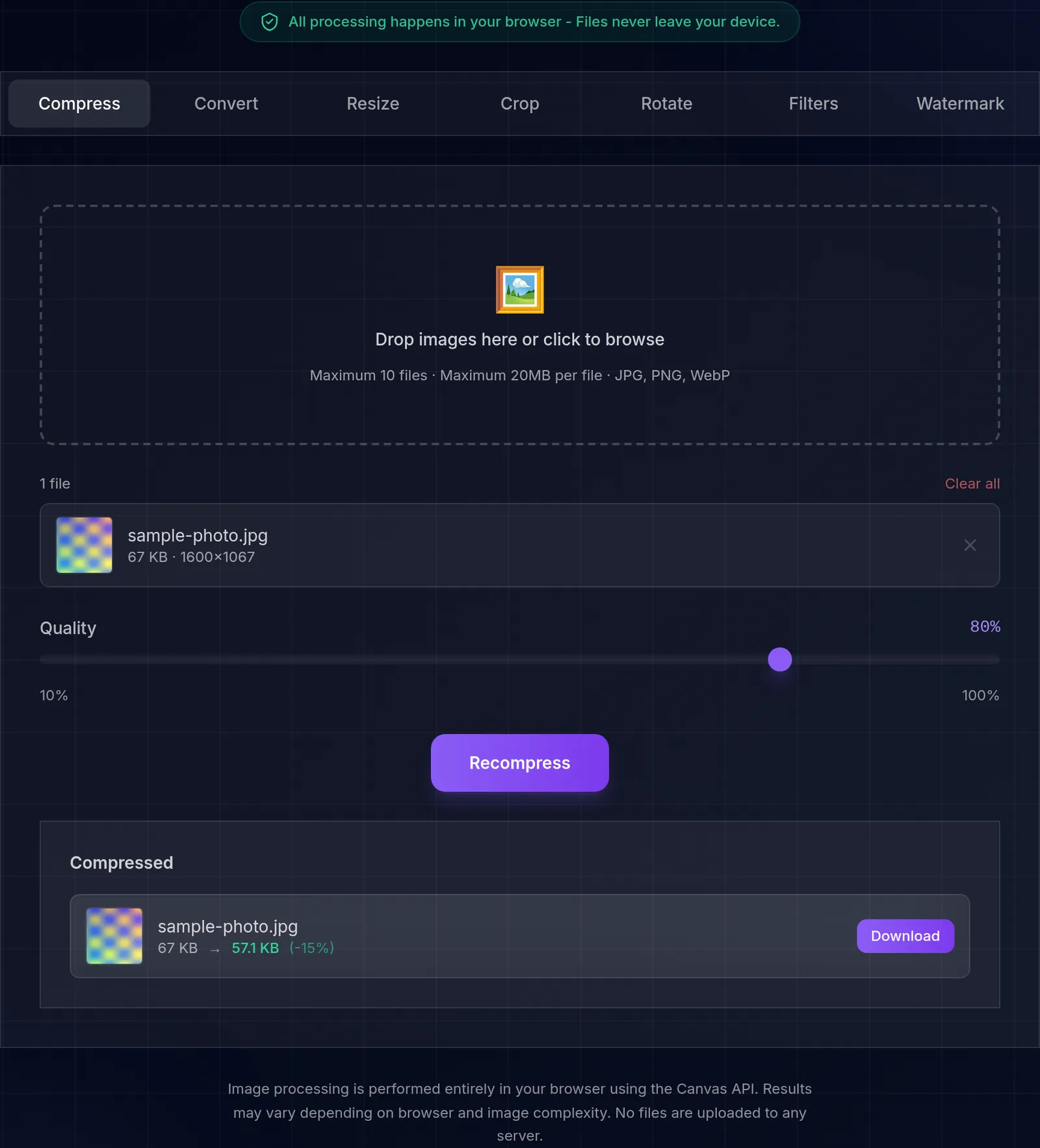
Read more→Drop images here or click to browse
Maximum 10 files · Maximum 20MB per file · JPG, PNG, WebP
Image processing is performed entirely in your browser using the Canvas API. Results may vary depending on browser and image complexity. No files are uploaded to any server.