PDF4 min
How to Merge PDFs Locally in Your Browser
A practical walkthrough of local PDF merging, ordering, limits, privacy properties, and the cases that still require a full PDF editor.
Read more→Free online PDF tools: merge, split, compress, and convert PDF files instantly. All processing happens in your browser - files never leave your device. Try now.
Processing: local in your browser
Process PDF files in your browser without uploading their contents to ToolsFree. Merge PDFs, split pages, compress files, and convert images to PDF - All free with no watermarks.
Processing happens locally in your browser. This avoids an upload to ToolsFree and reduces network exposure; security still depends on the browser, device, and file itself.
Merge multiple PDFs into one, split a PDF by page ranges, compress PDFs to reduce file size, convert JPG and PNG images to PDF. Drag and drop your files to get started.
To merge, select up to 20 PDF files of at most 100 MB each, reorder them, and run the merge. The cap protects browser memory; devices with less available memory may require smaller batches.
ToolsFree does not receive the PDF contents: the library opens and writes the document inside the browser. This avoids transferring the file to our server, but it does not make a malicious file harmless or replace device security.
Our suite includes four core operations. The merge PDF function lets you combine multiple documents into one in your preferred order. The split PDF tool allows you to extract specific pages or page ranges from a lengthy document, ideal for separating chapters or sections. PDF compression reduces file size while maintaining acceptable quality, perfect for emailing documents or uploading them to platforms with size limits. Finally, image-to-PDF conversion lets you turn JPG and PNG photos into PDF documents, useful for digitizing receipts, scans, or photographs.
In most PDFs, the weight comes from embedded images, not from text. Compression lowers the resolution and re-encodes those images to reduce size, so a scanned document or one full of photos benefits far more than a text-only file. If the result looks good on screen and stays legible in print, compression has done its job. For documents that are already light or contain only vector text, the reduction will be small because there is little to optimize.
Gathering several JPG or PNG photos into a single PDF is the most convenient way to send receipts, scans, or supporting documents: one file opens the same on any device and keeps the page order. For documents with text, scan or photograph in good light with a straight frame so it reads well. Keep in mind that the resulting PDF holds the images as-is: the text will not be selectable or searchable unless you use a separate OCR tool.
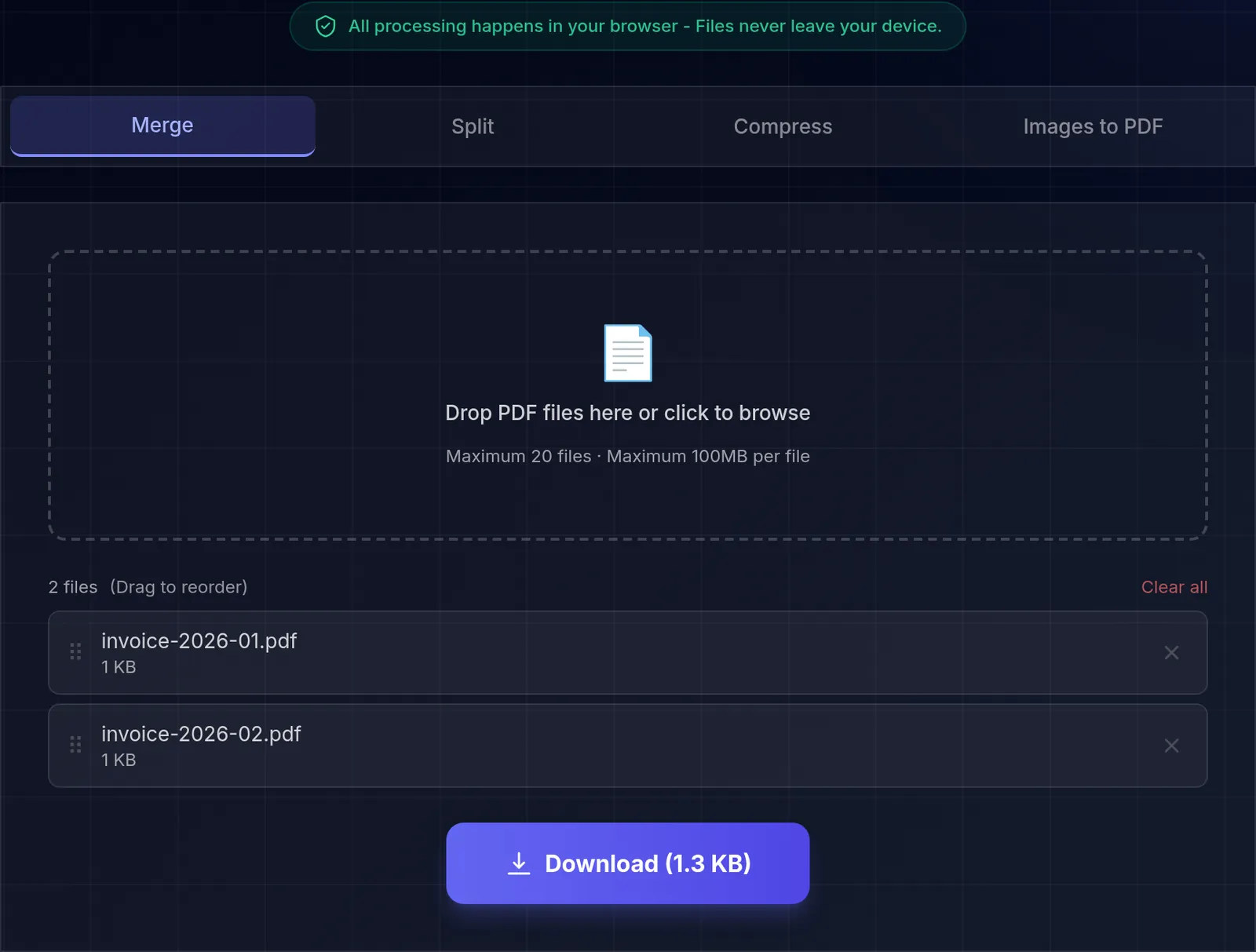
We merged 3 test PDFs — 9 pages and 4.1 KB between them — and analysed what came back: 9 pages again, at 2.5 KB, 38.6% smaller than the inputs added up. These are tiny generated fixtures, so that ratio says little about real documents, and we did not measure what causes it. We counted the pages rather than checking them one by one, so this confirms the count, not the order. As for the metadata, the merged file carries neither a title nor an author, though it does advertise the library that produced it: pdf-lib.
Measured on with Chromium 151.0.7922.173. How we measured it
Learn more with related in-depth guides and tutorials.
A practical walkthrough of local PDF merging, ordering, limits, privacy properties, and the cases that still require a full PDF editor.
Read more→Compare PNG, JPEG, WebP, and AVIF tradeoffs, understand browser-side re-encoding, and choose settings using repeatable visual checks.
Read more→Drop PDF files here or click to browse
Maximum 20 files · Maximum 100MB per file